
MCP servers fail in a small number of repeatable ways: the process never starts, the client and server negotiate incompatible protocol versions, a request arrives without the metadata the server requires, or the server is shouting into stdout and corrupting the very stream it is supposed to speak. The official debugging guide and the Claude Code reference each document these failure modes precisely, so fixing them is mostly a matter of working down a checklist in the right order.
This guide walks that checklist: how to confirm what actually failed, how to fix startup problems, how to correct transport mismatches, how to read the JSON-RPC error codes, and where the logs live.
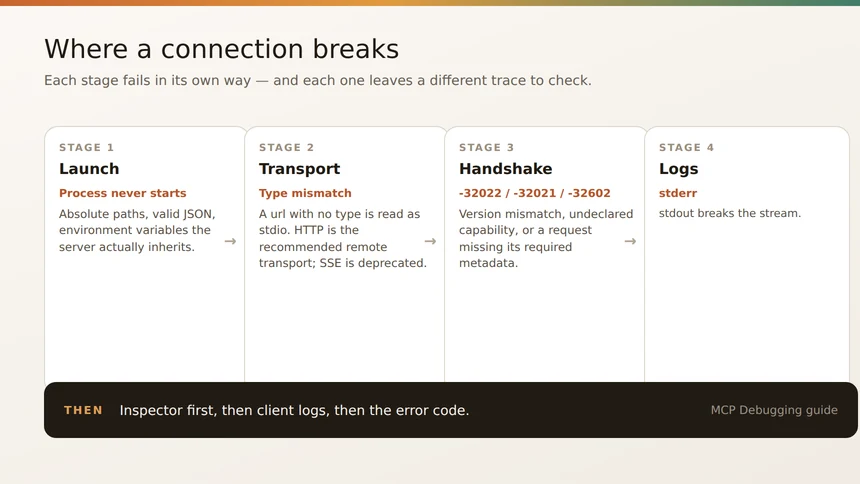
Confirm the Failure Before You Change Anything
Start by establishing what the client actually sees, not what you assume the server is doing. In Claude Code, claude mcp list shows every configured server and its status, claude mcp get shows the details for one server, and the /mcp command reports MCP server status from inside a session. If the client will not start far enough for that, claude doctor from the shell and /doctor inside Claude Code perform an automated check of your installation, settings, and extensions.
The single most useful tool is the MCP Inspector. It is an interactive, transport-agnostic testing UI that connects to stdio or Streamable HTTP servers, lets you invoke tools, prompts, and resources, and shows the notification stream live. The official debugging guide calls it the first stop: if the Inspector can talk to your server, the fault is in the client configuration; if it cannot, the fault is in the server.
That single split removes most guesswork before you start editing files.
Fix Startup Failures: Paths, Config, Environment
Servers that never start fall into three documented categories.
- Path issues — an incorrect server executable path, missing required files, or permission problems. The standard fix is an absolute path for the
commandvalue. - Configuration errors — invalid JSON syntax, missing required fields, or type mismatches in the config block.
- Environment problems — missing environment variables, incorrect variable values, or permission restrictions.
Two details cause most of these. First, working directory: when a client launches a stdio server, the working directory may be undefined, because the client itself could have been started from anywhere. Always use absolute paths in your configuration and .env files. Relative paths like ./data are the classic failure. Second, environment variables: a server launched over stdio inherits only a limited subset of environment variables automatically, and the exact set is platform-dependent. To override the defaults or supply your own, declare them explicitly with an env key in the server entry.
In Claude Code, the equivalent is the --env flag, and it has one ordering rule worth remembering: --env accepts only KEY=value pairs, and the server name must follow it, so put at least one other option between them. For stdio servers, everything after the double dash is passed to the server untouched, which is how flags like --port survive.
Fix Transport Mismatches
A surprising number of “server not found” reports are really transport configuration errors. When you configure a server in JSON, the type field decides how the client talks to it. A JSON entry with a url but no type is a configuration error, because the client reads an entry with no type as a stdio server. Claude Code reports it plainly: MCP server “
Two more transport rules catch people out. The SSE transport is deprecated — the reference tells you to add SSE-only servers with the same HTTP command, because the client tries HTTP first and switches to SSE when the server rejects it, so you can migrate later without rewriting the config. And an entry with "type": "sdk" can only be registered by an SDK host application, so the same entry placed in a project or user config file is skipped with a message saying only an SDK host application can register it.
For anything remote, HTTP is the recommended transport: it is the most widely supported, and it is the one that supports standard HTTP authentication methods including bearer tokens, API keys, and custom headers.
Read the Error Codes Instead of Guessing
Three JSON-RPC error codes cover most MCP connection failures, and each one tells you exactly what to fix.
| Error code | What it means | Where to look |
|---|---|---|
-32022 |
UnsupportedProtocolVersionError — the client and server cannot agree on a protocol version | The error’s data field lists the versions the server supports |
-32021 |
MissingRequiredClientCapabilityError — the server needs a capability the client never declared | The error names the missing capabilities; check the request’s _meta |
-32602 |
Invalid params — a required metadata field is missing from the request | The request’s _meta must carry the protocol version and client capabilities |
The metadata every request must carry
Every request has to carry io.modelcontextprotocol/protocolVersion and io.modelcontextprotocol/clientCapabilities, and clients should also identify themselves with io.modelcontextprotocol/clientInfo. A request missing either required field is rejected with -32602. To confirm what each side declared, call the server/discover request and compare the capabilities in the response with the _meta of your outgoing requests.
Fix the Noise: stdout, stderr, and Restarts
One rule causes silent corruption more than any other: a local MCP server must not log to stdout. On the stdio transport, stdout is the protocol channel, so a stray print statement interleaves with JSON-RPC frames and the client sees garbage. The host application captures everything written to stderr automatically, which is where logging belongs. On the Streamable HTTP transport, stderr is not captured by the client at all, so use your own log aggregation or OpenTelemetry, and inspect requests and server-sent event streams with ordinary HTTP tooling such as curl or the browser DevTools network panel.
One more deprecation to know: the notifications/message logging mechanism is deprecated as of protocol version 2026-07-28. Clients now opt in per request by setting io.modelcontextprotocol/logLevel in the request’s _meta, and servers must not send log notifications for requests that omit that field.
Where the logs live
In Claude Desktop, MCP log files are written to ~/Library/Logs/Claude on macOS and %APPDATA%\Claude\logs on Windows. On macOS, tail -n 20 -F ~/Library/Logs/Claude/mcp*.log follows them live. The logs capture server connection events, configuration issues, runtime errors, and message exchanges — which is usually enough to identify the failing stage. For client-side errors, enable the developer tools by creating a developer_settings.json file containing {"allowDevTools": true}, then open DevTools with Command-Option-I on macOS or Ctrl+Alt+I on Windows and read the Console and Network panels.
Finally, apply changes properly: after a configuration change, restart the MCP client; after a server code change, fully quit and reopen Claude Desktop, because closing the window is not enough. If the problem only appears under load, launch with claude --safe-mode to disable customizations for one session — if usage drops, a plugin, MCP server, or hook is the cause, and you can narrow it down from there.