
Claude can hand you something that is not a chat message: a document, a deck, a design, a dashboard, or a small working tool that opens in its own panel beside the conversation. That output is called an artifact — the quickest route from a messy working session to something you can edit, export, and share without moving to a second app.
This guide covers turning artifacts on, choosing a template, creating one, editing it, and sharing it safely — plus the limits that trip people up.
What Claude Artifacts Are and What Still Counts
An artifact is anything Claude makes for you that you could put in front of someone else: a design, a deck, a document, a dashboard, or a small interactive tool. It opens beside the conversation rather than inside it, and you can edit it, come back to it later, and share it with other people.
Claude decides to build one when the output clears a few internal checks. The content has to be significant and self-contained — typically more than fifteen lines. It has to be something you will likely edit, reuse, or share outside the conversation, it has to make sense without extra context from the chat, and it has to be content you will come back to.
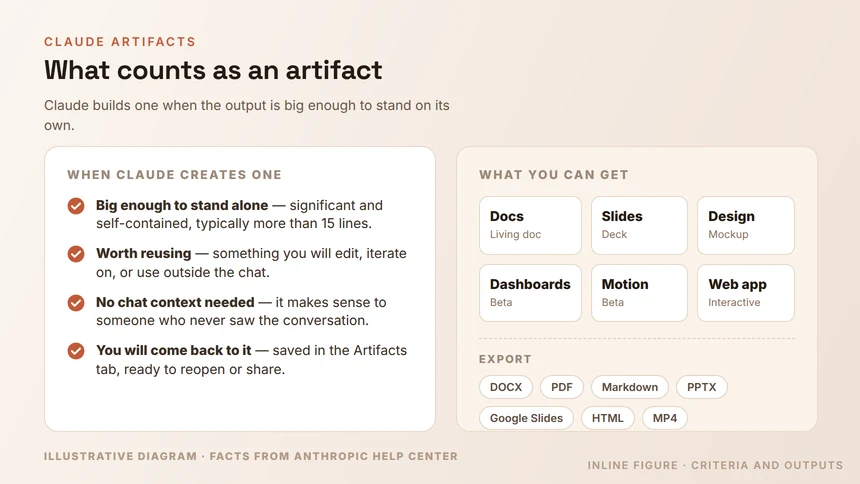
Within those boundaries the range is wide: documents, code snippets, single-page websites, images, diagrams and flowcharts, dashboards, and small interactive tools.
One naming detail matters if you have used Claude for a while. Artifacts created inside a chat before September 16, 2026 are now called legacy artifacts. They keep working, and you can still publish and share them, but you cannot create new ones that way. The current route into the feature runs through templates, which is where the rest of this guide picks up.
Enable Artifacts and Choose a Template
Artifacts need one switch turned on before they appear. On Free, Pro, and Max plans, Cloud code execution and file creation must be enabled in Settings under Capabilities. On Team and Enterprise plans, the same two settings live in Organization settings under Capabilities. The feature itself is available on Free, Pro, Max, Team, and Enterprise, and in Claude Code on every plan that includes Claude Code.
Once it is on, you can start from a template instead of a blank chat. Docs, Slides, and Design are available on all plans and are on by default; on Enterprise plans they turn on by default from October 15, 2026, and an owner can enable them earlier.
| Template | What it produces | Availability |
|---|---|---|
| Docs | Living documents with headings, tables, and multiple tabs | All plans, on by default |
| Slides | Presentations built from notes, reports, or chat history | All plans, on by default |
| Design | Visuals, mockups, prototypes, one-pagers, landing pages | All plans, on by default |
| Dashboards | Charts built from connected apps, with the query and refresh time shown | Beta on Pro, Max, Team, and Enterprise |
| Motion | Animated explainers, charts, and walkthroughs, exported as MP4 | Beta on Team and Enterprise |
Two have fine print worth reading. Dashboards are off by default on Enterprise until an owner turns them on, and Motion is on by default on Team but off on Enterprise until an owner enables it. A missing template usually comes down to that switch.
Create an Artifact From Work You Already Did
The best artifacts come from a request that points at material Claude can already see. Asking in any conversation works — “Turn the plan we just worked through into a product spec I can share with the team” is a good example. You can also start a request with /docs, pick Output in the message box and choose a template, or open a template from the gallery in the Artifacts tab.
Claude asks a few clarifying questions before it starts, then drafts on screen and leaves comments explaining its choices. It works from the context it already has — your files, memory, projects, skills, and connected apps — so the output is rarely a blank page. Every artifact is saved in the Artifacts tab in the sidebar, so you can find it again from any conversation.
Where you can create them depends on where you work. On the web and desktop you can ask in any chat or start from a template. In Claude Code you can publish session output as an artifact: on desktop it opens in the side panel, and in the terminal Claude gives you a link. On iOS and Android you can ask for a design, deck, or doc and edit it in the Artifacts tab, but sharing settings can only be changed on the web or desktop.
One permission detail protects you here. The creator owns the artifact, and Claude always works with the permissions of the person who asked it, so it cannot make changes for someone who only has view access. Every edit, by a person or by Claude, is attributed to whoever made it.
Edit the Artifact Two Ways
Editing is where artifacts pull ahead of chat. You have three routes, and they mix well.
- Type it yourself. Click into a doc and start writing. Your changes save automatically and appear right away for everyone who has the document open.
- Ask Claude in the conversation. Requests like “Tighten the intro and add a risks section” are enough. Claude makes the change and tells you what it changed.
- Mark it and ask. In a doc or a Markdown document, highlight the text you want changed, click Edit with Claude, and describe the change. Claude edits where you marked it, so you do not have to describe which paragraph you meant.
Comments make that loop collaborative. Select text, leave a comment, and mention @Claude in it. Claude replies in the thread, applies the change, and explains what it did and why. Claude also leaves its own comments while drafting. If you are working across several Markdown files at once, you can leave edit requests in more than one file and have Claude apply the whole batch in a single pass when you send the message.
Two more behaviors are worth knowing. Editing an earlier message creates a different version of the chat with its own artifacts, so you can explore a second direction without losing the first. And charts, diagrams, and timelines that Claude builds from connected apps do not refresh on their own — you have to ask it to pull the latest data again.
Share It, Export It, and Keep Control
Artifacts start private to you, and nothing is shared until you share it. Open the artifact and click Share. On Pro and Max plans the choice is between keeping it to yourself and giving access to anyone with the link, plus email invitations for specific people. On Team and Enterprise plans you can also share with anyone in your organization, and external sharing by link depends on an owner having enabled it. Access levels are Can view, Commenter, and Can edit, although which levels appear depends on the artifact — Claude Docs documents offer view or edit rather than commenting.
Email invitations are in beta on Pro, Max, Team, and Enterprise plans, and a few artifact types cannot be invited that way: Claude Docs documents, artifacts that connect to other websites, and artifacts with an uploaded file that is still being checked.
Export formats by artifact type
Export turns an artifact into a file someone else can use, and the format depends on what you built.
| Artifact | Export options |
|---|---|
| Docs | Word, PDF, Markdown, Google Docs |
| Slides | PowerPoint, PDF, or Google Slides as editable files |
| Design | .zip, PDF, PowerPoint, or standalone HTML |
| Motion | MP4 video |
| Legacy artifacts | View code, copy content, or download from the artifact panel |
Artifacts that call Claude
You can also build an artifact that calls Claude directly, which turns it into a small app. It runs on Anthropic’s infrastructure, and people who open it sign in with their own Claude account and interact with their own instance. No API keys are required, there is no cost to you, and usage counts against each person’s own plan limits rather than yours.
You can also start from someone else’s published artifact. On Free, Pro, and Max plans, click Copy to copy its code, paste it into a new chat, and describe your changes. Treat that code like a file from an unknown sender, and only do it with artifacts from people you trust.
When something breaks, an artifact usually offers a repair path. Look for the Try fixing with Claude button next to the error message. Clicking it copies the error details into a new message so you can send them to Claude for diagnosis and a suggested fix. Claude attempts the fix, but success is not guaranteed and some errors still need manual troubleshooting.
The pattern to remember: gather material in the chat, let Claude build the artifact beside it, and export only the version you have checked.