
If you use Notion, you already have access to an AI assistant — you just might not be using it to its full potential. Notion AI is built directly into your workspace, which means it already knows your pages, databases, and documents. Unlike standalone AI tools that require you to paste everything in manually, Notion AI can read your existing content and work with it immediately.
This guide covers every major feature, the workflows that actually save time, and a few things Notion AI simply cannot do.
What Notion AI Can and Cannot Do
Notion AI lives inside your workspace. It understands your pages, databases, and documents — it is not a generic chatbot. That context is what makes it valuable.
Notion AI can summarize any long page into key points, fill database fields automatically, generate documents from a template, answer questions about content in your workspace, and translate text instantly.
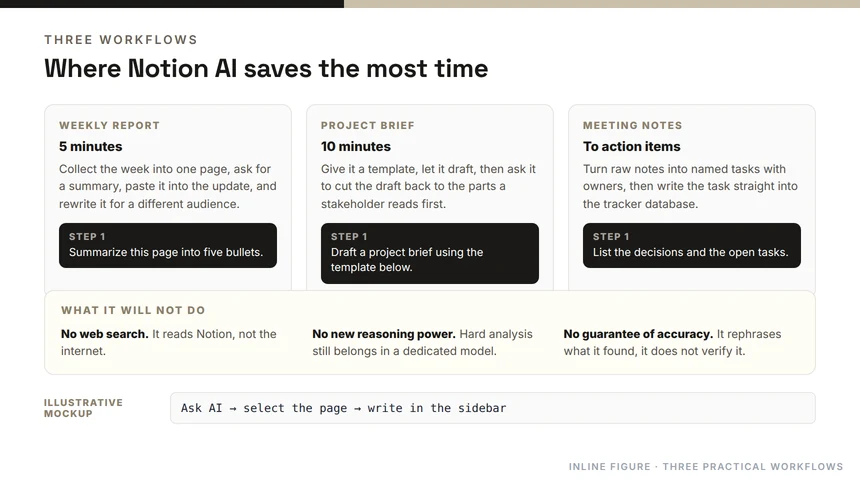
Notion AI cannot search the internet, replace Claude or ChatGPT for complex reasoning tasks, or see images or file attachments — it works with text only.
How to Access Notion AI
The fastest way to access Notion AI is to press the forward slash key on any page. Type “AI” and all available AI options appear in the menu. You can also select text first — the floating toolbar that appears will show AI options relevant to your selection.
If you are on a Notion Free plan, AI access is limited to a trial. Notion AI as a full add-on requires a Plus plan or higher, priced at approximately $10 per member per month, or it is included in the Business plan.
Features That Actually Save Time
Summarize Meetings and Long Documents
Open any long page, press the forward slash key and type “AI Summary.” Notion AI will generate key points in seconds. For meeting notes, the most practical setup is a template with three sections: a raw notes section where you paste your notes during the meeting, a summary section where you press “AI Summary” to generate a structured overview, and an action items section where you press “AI Write” and type “Extract all next steps from the notes above with owner and due date.”
This workflow turns 30 minutes of raw notes into a structured summary in under a minute.
Fill Databases Automatically
This is the most underused Notion AI feature. In any database, you can add an AI property that fills automatically based on other fields in the same record.
Practical examples include a CRM where a “Client Summary” field reads all notes and generates a one-paragraph overview, a project database where a “Next Steps” field analyzes task status and suggests actions, and a content library where an “AI Tags” field automatically classifies each article by topic.
To set this up, open a database, click “Add a property,” select “AI,” and configure the prompt that tells Notion AI what to generate for each record.
Generate First Drafts
Type the forward slash key and select “AI Write,” then describe what you need. Examples include “Write a welcome email for new employees in a friendly but professional tone,” “Generate a project plan outline for a product launch with these sections: objective, milestones, risks, and metrics,” or “Draft a client proposal with sections for the problem, our approach, timeline, and budget.”
The draft will not be perfect. But going from a blank page to a usable first draft takes seconds instead of minutes, and the time saved compounds across every recurring document you create.
Ask Questions Across Your Workspace
In the Notion search bar at the top of the sidebar, type a question in natural language. “What are the active projects in the marketing team?” or “Find all decisions we made about the website redesign last month.” Notion AI searches your entire workspace and returns answers with references to the relevant pages.
This replaces hours of manual searching with a single question. The key requirement is that your Notion workspace is organized enough that the information lives inside it — Notion AI cannot find what is not there.
Translate Text
Select any text, open the AI toolbar, and choose “Translate to English” or any other language. For international teams, this means creating documents in one language and generating a translated version in another in seconds. For internal use, it is functional — not perfect translation, but good enough for cross-language collaboration.
Practical Workflows
Weekly Report in Five Minutes
Start with a weekly status template. Paste in your task status from the week: completed items, items in progress, blockers, and next week priorities. Then use “AI Write” with this prompt:
“Write a weekly status report based on the notes above. Format as an executive summary of three sentences, followed by sections for completed work, work in progress, blockers, and next week priorities. Tone: professional and concise.”
Project Brief in Ten Minutes
Type “AI Write” and describe your project using a structured prompt:
“Write a project brief for a new project. Goal: describe the objective. Timeline: state the dates. Team: list names and roles. Success metrics: describe how success will be measured. Risks: list known risks. Format the output as a Notion page with headers, bullet points, and a timeline table.”
Meeting Notes to Action Items
Paste raw meeting notes into Notion. Select all, use “AI Write” with the prompt “Extract all action items from the notes above. For each action item, include the owner and due date.” The output gives you a bulleted list of next steps that you can drag directly into your task database.
Notion AI vs Standalone AI Tools
Notion AI wins when your data is already in Notion. Its key advantage is workspace context — it can reference your other documents without you pasting anything in. For questions about your existing content, Notion AI is faster and more relevant than ChatGPT or Claude.
For writing or reasoning tasks that require external knowledge, complex analysis, or creative work outside your workspace, standalone AI tools are still more powerful.
The practical approach is to use both: Notion AI for everything that lives inside your workspace, and a standalone tool like Claude or ChatGPT for tasks that require broader knowledge or more sophisticated reasoning.
Database AI Features
Beyond individual page actions, Notion AI works across databases. You can add an “AI Summary” property to a meeting notes database that auto-generates a summary for every record. You can add an “AI Category” property that auto-classifies entries by topic. You can select multiple database entries and ask Notion AI to summarize all of them, translate all selected entries, or extract a common theme.
For teams running large Notion workspaces, these bulk operations save hours of manual work every week.
What to Keep in Mind
Notion AI is a productivity multiplier, not a replacement for clear thinking. The quality of its output depends entirely on the quality of your input and the organization of your workspace. If your Notion workspace is a mess, Notion AI will generate structured summaries of a mess.
Start by organizing your key pages and databases. Once your content lives in a structured workspace, Notion AI becomes genuinely powerful. If you are using Notion primarily as a note-taking tool and have not yet built any databases or templates, start there before relying heavily on AI features.