
Most people treat video editing as a waveform problem: find the cut, drag the handle, hope the audio still lines up. Descript inverts that. It transcribes your recording and lets you edit the words, so deleting a word deletes the matching moment of media and moving a sentence moves the footage with it. Once the text is clean, a set of AI tools handles the cleanup that normally eats an afternoon.
This guide walks the whole path — getting media in, reading and fixing the transcript, making cuts in text, refining sound and picture, and finishing with captions, chapters, and export.
Get the Footage In: Record, Import, or Screen
Descript supports four ways of getting material into a project, and each one lands in the editor already transcribed.
Record directly in the app, with your camera and microphone captured together. Use screen recording to capture your screen and camera in a single session — useful for product walkthroughs and tutorials. Use Rooms, Descript’s remote recording studio, for interviews: it records up to 4K with a separate track per participant, and guests join from a browser link with nothing to install. Or simply import media — drag in video or audio files, including a Zoom recording you already have.
Whichever route you take, the transcript appears in seconds. That transcript is not a side artifact; it is the editing surface.
| Input route | What you get | Best for |
|---|---|---|
| Record in the app | Camera and mic captured together | Talking-head updates and explainers |
| Screen recording | Screen and camera in one session | Software tutorials and demos |
| Rooms | Up to 4K, a separate track per guest | Remote interviews and podcasts |
| Import media | Video, audio, or a Zoom recording | Footage you already shot |
Rooms deserves a special note for podcasters: because every participant lands on a separate track, a remote conversation that was hard to hear live is straightforward to clean up later, and you can replace one speaker’s audio without touching anyone else’s.
Read and Correct the Transcript Before You Cut
The single biggest time saver in a transcript-first workflow is spending five minutes fixing spelling and speaker labels before touching the cuts. Click a word to play that moment of audio, correct names and jargon, and label who said what. A transcript full of misheard product names is a transcript you will fight later, and clean speaker labels are what make the rest of the editing work.
Do this first because everything downstream keys off the text. Filler-word removal, retake removal, captions, chapter markers, and even the search inside your project all read the transcript rather than the audio.
Make the Cuts in the Text
Once the words are right, editing is editing a document. Select a word and delete it, and Descript removes the corresponding media. Drag a sentence to a new position, and the footage moves with it. The timeline is there if you want it, but most of the work happens in the text pane.
Three automated passes cover the repetitive part of the job.
Remove Filler Words, Retakes, and Long Pauses
Remove filler words strips the “ums,” “uhs,” and long pauses in a single pass. Remove retakes keeps the good take and cuts the rest when you flub a line and start over. And Smooth Jump Cuts solves a problem most editors hit immediately: by default, cuts land wherever filler words were removed, so the edit jumps at the wrong moments. Smooth Jump Cuts lets you decide where the cuts should actually fall instead.
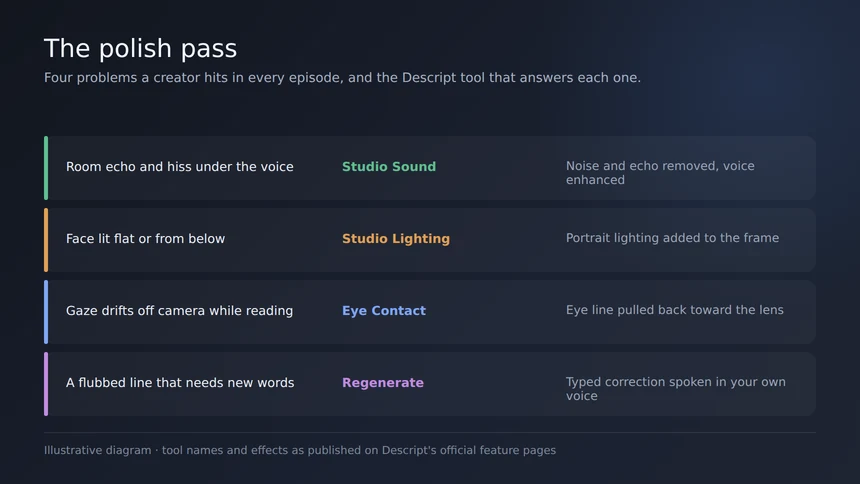
If a line needs different words rather than a different take, Regenerate lets you type the correction and Descript produces the corrected audio and lip movement. This uses a voice clone trained on your own recordings — Descript limits this feature to your own voice by design, so it is a fix-it tool for your content, not a way to synthesize someone else’s speech.
Refine the Sound and the Picture
Cleaning up a recording is a separate pass from cutting it, and Descript treats it that way.
Studio Sound is an AI audio filter that removes background noise and echo and enhances the speaking voice, applied in one click to any track. The clean-audio workflow is documented as three steps: import the file, turn on the reduction and enhancement tools, then listen critically and adjust loudness or compression until it sounds right — with Dolby and Auphonic-style mastering options available for finer control. Regenerate can also smooth out low-volume patches or gaps by sampling nearby dialogue, and filler words can be removed in the same pass.
For picture, Studio Lighting adds portrait lighting to badly lit footage, Eye Contact corrects your gaze toward the camera so reading from a script does not look like reading from a script, and Green Screen swaps or removes the background without needing a physical green screen. Scenes and layouts are adjusted the same way you would build slides in a presentation.
Underlord, the AI co-editor, can run many of these steps for you: give it a raw recording and a goal, and it can cut filler, pick the best takes, add scenes, and generate clips — with every change reviewable and undoable.
Finish It: Captions, Chapters, Show Notes, and Export
The finishing pass is largely automatic. Captions and subtitles are styled, editable, and synced to the transcript in one click. Chapter markers are inserted automatically and can be named. Show notes are written from what was actually said, and YouTube descriptions are generated from the transcript with keywords included.
For export, Descript publishes to YouTube, syncs with tools such as Drive and Adobe, and exports in every format and resolution the plan allows — 1080p on Hobbyist, 4K on Creator, with the free tier capped at 720p. Plans differ mainly in monthly media hours, AI credits, and export resolution; check the current pricing page before committing, since limits and credits change.
Podcast projects follow the same route: Descript treats podcasting as an end-to-end workflow in audio or video, with the same transcript, the same filler-word and retake tools, and export to the audio formats hosts expect.
One recording does not have to stay one video. Create clips surfaces the moments most likely to hold attention and reformats them per platform, Translate video dubs and subtitles the whole thing into dozens of languages, and the Descript MCP connector lets an AI agent such as Claude transcribe, edit, and create clips without you leaving the chat. For teams, the Business plan adds shared brand controls and proofread translation in 30+ languages.
Used in that order — clean transcript, cut in text, refine, then publish — Descript turns a two-hour edit into a sequence of small, readable decisions. The transcript stays the source of truth, which is exactly why the work feels fast.