
Canva Magic Write is one of the most accessible AI writing tools available — not because it is the most powerful, but because it is built into a design platform millions of people already use. You do not need to switch tools or learn a new interface. You are already in Canva, and Magic Write is right there when you need it.
This guide walks through how to access it, what it can actually do, and the workflows where it saves the most time.
What Canva Magic Write Is
Magic Write is Canva’s AI text generation tool. You describe what you need, and it generates text directly inside your Canva design or document. Unlike pasting output from ChatGPT, the generated text appears exactly where you need it in your layout, ready to format and style with Canva’s design tools.
Magic Write is available within Canva Docs, which you can access from the Canva homepage or directly inside any design where you have added a text element. It supports both English and Chinese text generation.
How to Access Magic Write
There are two primary ways to access Magic Write.
Inside a Canva Document
From the Canva homepage, click “Create a design” and select “Document.” This opens a blank canvas document. Click the add icon on the right side of the page, or simply type the forward slash “/” to open the Canva Assistant menu. Select “Magic Write” from the list, enter a description of the text you want to generate, and click “Generate.”
Results appear in real time. You can click “Stop generation” or press Escape to end the output early if it is going in the wrong direction. You can then click “Retry” to regenerate or “Insert” to place the text directly into your document.
Inside a Design Element
Open any existing design — a social media post, a presentation, a flyer — and add a text box. Select the text box, then click the floating “Magic Write” button that appears, or type “/” and select Magic Write from the menu. Enter your prompt and generate text that drops directly into your selected element.
This approach is particularly useful for social media content where you want AI-generated text already placed inside a formatted design.
What Magic Write Can Do
Magic Write handles several types of text generation tasks.
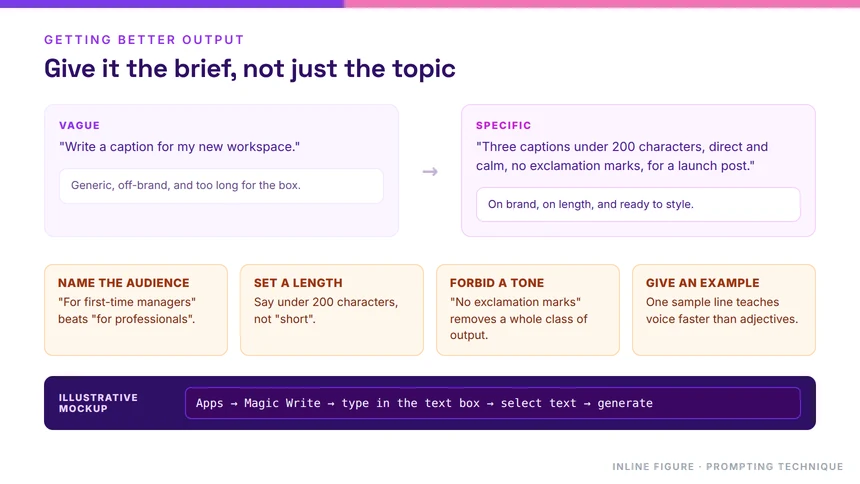
Generate new text from a prompt. Describe what you need — a paragraph, a list of options, a short bio — and Magic Write produces it. More detail in your prompt generally produces better results. Instead of “write a caption,” try “write a social media caption for a summer sale post, friendly and urgent tone, under 50 words, include a call to action.”
Rewrite selected text. Select existing text in your design, click Magic Write, and choose a transformation. Available options include “Rewrite” for a fresh version, “Make shorter” or “Make longer” to adjust length, “Make it more formal” or “Make it more casual” to adjust tone, “Fix spelling and grammar” for a quick edit, “Continue writing” to extend a fragment, and “Summarize” to condense longer content.
Create presentation notes. Open a presentation in Canva, click the notes section at the bottom of a slide, then click “Generate notes.” Magic Write will generate speaker notes based on the slide content. You can choose “Use slide content” for AI-generated notes based on the current slide, or enter a custom prompt to generate notes from scratch.
Build a brand voice. For teams on Canva’s Team plan, Magic Write can analyze existing text samples and create a custom brand voice. You provide three to five examples of your brand’s writing style, and Magic Write learns the tone, vocabulary, and phrasing patterns. Subsequent generations then match your brand voice rather than defaulting to generic language.
Practical Workflows That Save Time
Social Media Content in Bulk
Create a batch of social posts in under 20 minutes. Open a document in Canva, use Magic Write to generate 10 different caption options for your campaign. Select each one, use Magic Write again to refine the tone — “make it more casual” or “add an emoji” — then copy each caption into your scheduling tool. Magic Write handles the hardest part, which is getting from a blank screen to a usable first draft.
Quick Design Mockups with Text
When you are building a client presentation and need placeholder text that does not look like placeholder text, Magic Write generates realistic content quickly. Instead of “Lorem ipsum dolor sit amet,” you get actual marketing language that makes your design look finished and presentable in client meetings.
Meeting Agendas and Team Documents
Open a new Canva Doc, use Magic Write with the prompt “Generate a team meeting agenda with sections for updates, discussion topics, and action items.” Refine with “add a section for blockers” or “make it a weekly format.” Magic Write is especially useful for recurring documents where you want the same structure every time but need fresh content.
Personal Voice Training
On a Team plan, you can train Magic Write on your own writing. Paste three to five examples of your writing — emails, blog posts, reports — and Magic Write analyzes your voice. The result is that future generations sound like you rather than a generic AI assistant. This is useful for founders, executives, or anyone whose personal brand depends on consistent voice across content.
What Magic Write Cannot Do Well
Magic Write is not a research tool. It does not browse the web, pull in external data, or verify facts. For any content that requires current information, specific numbers, or data-backed claims, you need to provide the facts yourself and use Magic Write only for drafting and phrasing.
It is also not a replacement for a full writing tool for long documents. Magic Write works best for short-to-medium text — captions, paragraphs, outlines, summaries. For articles, reports, or documents longer than a few pages, the output requires significant editing and expansion to reach publication quality.
Finally, the free plan gives you a limited number of Magic Write uses per month. Power users on Canva Pro or Team plans get significantly higher monthly allowances.
Tips for Better Results
Be specific about format in your prompt. “Write a product description for a ceramic coffee mug, highlight its handmade quality and thermal properties, 80 words, conversational tone” will produce better results than “describe this product.”
Use the “Tell AI what to do next” option on any generation to refine the output without starting over. If the first draft is too long, say “make it shorter and add a question at the end.” This iterative approach produces better results than regenerating from scratch each time.
For presentations, generate speaker notes after designing your slides rather than before. Magic Write uses your slide content as context, so the notes are more accurate when the visual content is already in place.
Getting Started
You do not need to change how you work to start using Magic Write. Open Canva, start a new design or document, and type “/” to find Magic Write. The best way to learn what it can do is to try it with your next recurring content task — a social post, a meeting agenda, a product description — and see how much time it saves.